Why Is TeraBox Not Working? Complete Troubleshooting Guide
TeraBox is one of the most popular cloud storage platforms, helping millions of users store photos, videos, documents, and backups online. However, like any cloud storage service, users occasionally experience issues such as login errors, failed downloads, app crashes, upload problems, or slow performance.
If you’re wondering why TeraBox is not working, the good news is that most problems can be fixed within a few minutes. In many cases, the issue is related to internet connectivity, outdated app versions, corrupted cache files, browser problems, device compatibility, or temporary server issues rather than the TeraBox platform itself.
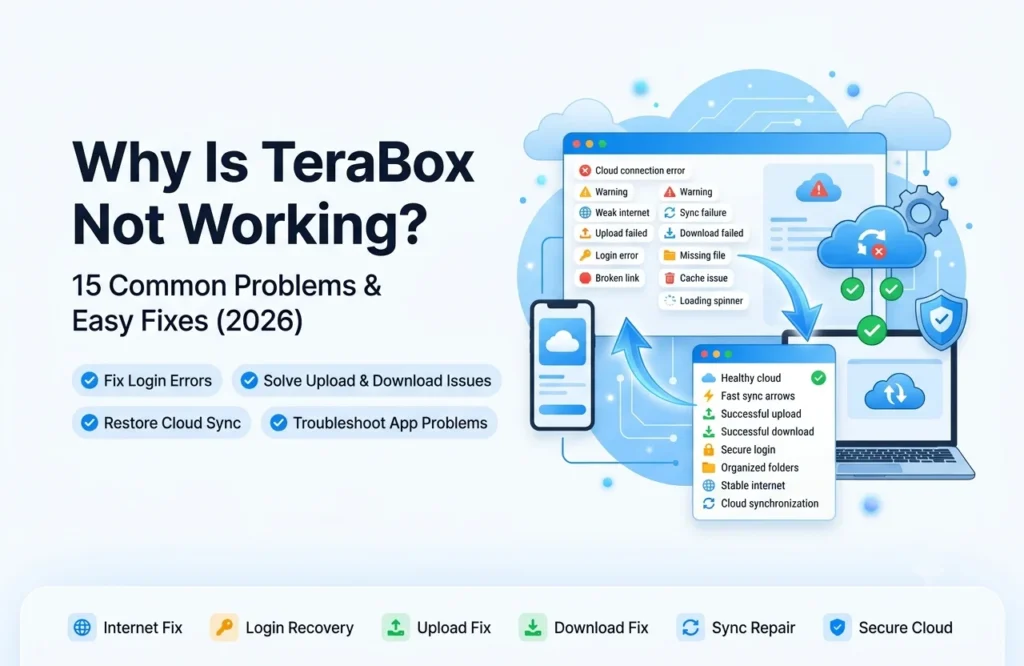
This guide explains the most common TeraBox errors, their causes, and practical solutions that can help you get the app working again.
Common Reasons Why TeraBox Is Not Working
Before applying any fix, it’s important to understand what is causing the issue. Most TeraBox problems fall into one of the following categories: internet connectivity issues, outdated applications, corrupted cache files, login problems, storage limitations, browser conflicts, or temporary server outages. Users often assume the app is broken when the actual problem exists on their device or network.
Identifying the root cause first can save a significant amount of troubleshooting time.
Poor Internet Connection
A weak or unstable internet connection is one of the most common reasons TeraBox stops working properly. If your Wi-Fi or mobile data connection is slow, you may experience failed uploads, interrupted downloads, loading errors, or videos that continuously buffer.
Cloud storage services require a stable connection to communicate with remote servers. Even brief network interruptions can cause synchronization issues.
How to Fix It
- Switch between Wi-Fi and mobile data.
- Restart your router.
- Move closer to your Wi-Fi source.
- Test internet speed using a speed testing website.
- Disable background apps consuming bandwidth.
A stable internet connection often resolves many TeraBox issues instantly.
Also Check: Login problems and solutions
TeraBox Servers Are Down
Sometimes the problem isn’t on your side at all. TeraBox servers may experience temporary outages, maintenance periods, or technical updates. During these periods, users may encounter login failures, upload errors, or messages indicating that the server cannot be reached.
How to Fix It
Wait for the maintenance period to end and try again later. You can also check online outage monitoring platforms to see whether other users are reporting similar problems.
Outdated TeraBox App Version
Using an old version of the TeraBox application can lead to crashes, loading problems, synchronization failures, and compatibility issues. Developers regularly release updates that fix bugs, improve security, and optimize performance.
How to Fix It
Open Google Play Store or Apple App Store and check whether a newer version of TeraBox is available. Installing the latest update often solves unexpected errors.
TeraBox App Keeps Crashing
Many users report that TeraBox suddenly closes or crashes while opening files. This can happen when the application cache becomes corrupted or when the device lacks sufficient resources.
How to Fix It
Go to your device settings, locate the TeraBox app, and clear the cache. If the issue continues, uninstall and reinstall the application.
This process removes temporary files that may be causing conflicts.
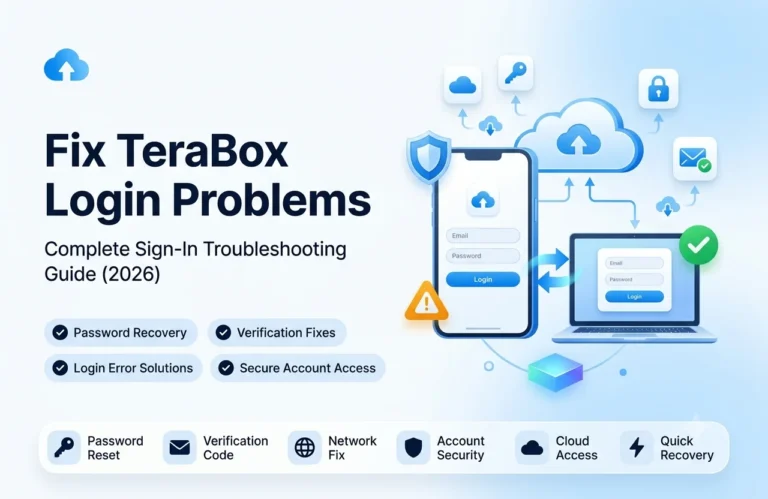
TeraBox Login Problems
Login issues are among the most frustrating problems users encounter. Incorrect passwords, account verification errors, expired sessions, or authentication issues can prevent access to your files.
How to Fix It
- Double-check your email and password.
- Reset your password if necessary.
- Log out and sign in again.
- Ensure your internet connection is stable.
- Verify that your account has not been restricted.
In most cases, re-authentication resolves login-related issues.
TeraBox Not Opening on Android
Android users sometimes report that the app gets stuck on the loading screen or refuses to open completely. This usually occurs due to outdated software, corrupted data, or insufficient system resources.
How to Fix It
Update both your Android operating system and the TeraBox app. Clearing cache and restarting the device can also help restore normal functionality.
TeraBox Not Working on iPhone
iPhone users may experience app freezes, loading delays, or synchronization failures. These issues are often caused by outdated iOS versions, low storage space, or temporary application glitches.
How to Fix It
Restart your iPhone, update iOS, and ensure sufficient storage space is available. If needed, reinstall the application.
TeraBox Not Downloading Files
Sometimes users can view files but cannot download them. This issue may occur because of slow internet speeds, insufficient device storage, expired file links, or browser-related problems.
How to Fix It
Check available storage on your device, ensure the file link is still active, and try downloading from another browser or device.
TeraBox Upload Failed Error
File uploads may stop midway or fail completely. This is usually caused by unstable internet connections, large file sizes, server interruptions, or permission issues.
How to Fix It
Try uploading the file again using a stronger internet connection. If the file is extremely large, consider compressing it before uploading.
TeraBox Videos Not Playing
Video playback issues are common when network speeds are insufficient or cached data becomes corrupted. Videos may continuously buffer or fail to load entirely.
How to Fix It
Update the app, clear cache files, and switch to a faster network connection. This often restores normal streaming performance.
TeraBox Website Not Working
Some users access TeraBox through a browser instead of the mobile app. Browser-related problems such as corrupted cookies, excessive extensions, or outdated browser versions can prevent the website from loading correctly.
How to Fix It
- Clear browser cache and cookies.
- Disable unnecessary extensions.
- Update your browser.
- Try Incognito Mode.
- Test another browser.
TeraBox Sync Problems
Synchronization issues occur when files uploaded from one device fail to appear on another. This usually indicates connectivity problems or delayed server communication.
How to Fix It
Sign out and back into your account, refresh synchronization settings, and ensure both devices are connected to the internet.
Insufficient Device Storage
Many users focus only on cloud storage and forget that downloads still require local storage space. If your phone or computer is nearly full, TeraBox may fail to download or save files.
How to Fix It
Delete unnecessary files, remove unused applications, and free up storage before attempting another download.
TeraBox Link Not Working
Sometimes shared links display errors such as “Link Not Supported” or “File Not Found.” This usually happens when the file owner deletes the content, changes sharing permissions, or shares an invalid link.
How to Fix It
Request a new link from the file owner and ensure the shared URL is complete and active.
VPN, Firewall, or Regional Restrictions
Certain networks, schools, offices, or regions may restrict access to cloud storage services. VPN software, firewalls, or ISP-level restrictions can interfere with TeraBox connections.
How to Fix It
Temporarily disable your VPN, switch networks, or test the application using mobile data to determine whether the restriction is network-related.
Advanced Troubleshooting Tips
If none of the solutions above work, try these additional fixes:
- Restart your device.
- Reinstall the TeraBox application.
- Update your operating system.
- Check account status.
- Try another device.
- Log in through the web version.
- Contact TeraBox support.
These advanced steps can resolve more complex issues that standard troubleshooting cannot fix.
How to Prevent Future TeraBox Problems
Preventing issues is often easier than fixing them. Regularly updating the application, maintaining sufficient storage space, clearing cache files periodically, and using a stable internet connection can significantly reduce the chances of encountering errors.
Additionally, avoid downloading modified versions from untrusted sources and always use secure login credentials to protect your account.
Also Check: Recover deleted files in terabox
Final Thoughts
If TeraBox is not working, there is usually a simple explanation behind the problem. In most cases, issues are caused by internet connectivity, outdated applications, browser conflicts, storage limitations, or temporary server outages rather than permanent platform failures. By following the troubleshooting methods explained above, you can resolve most TeraBox errors and continue using your cloud storage without interruption.
Whether you’re dealing with login issues, failed uploads, download problems, app crashes, or synchronization errors, these solutions can help restore normal functionality quickly and effectively.