How to Share Files Using TeraBox Links: Complete Beginner’s Guide
TeraBox is more than just a cloud storage platform. It also makes it easy to share photos, videos, documents, and other files with friends, family members, classmates, or coworkers. Instead of sending large files through email or messaging apps, users can simply create a sharing link and send it to anyone.
This feature is particularly useful when dealing with large videos, high-quality photos, work documents, or backup files that may exceed the size limits of traditional sharing methods.
If you’re new to TeraBox, this guide will show you exactly how to create, manage, and secure file-sharing links.
Also Check: Recover deleted files in TeraBox
What Is a TeraBox Sharing Link?
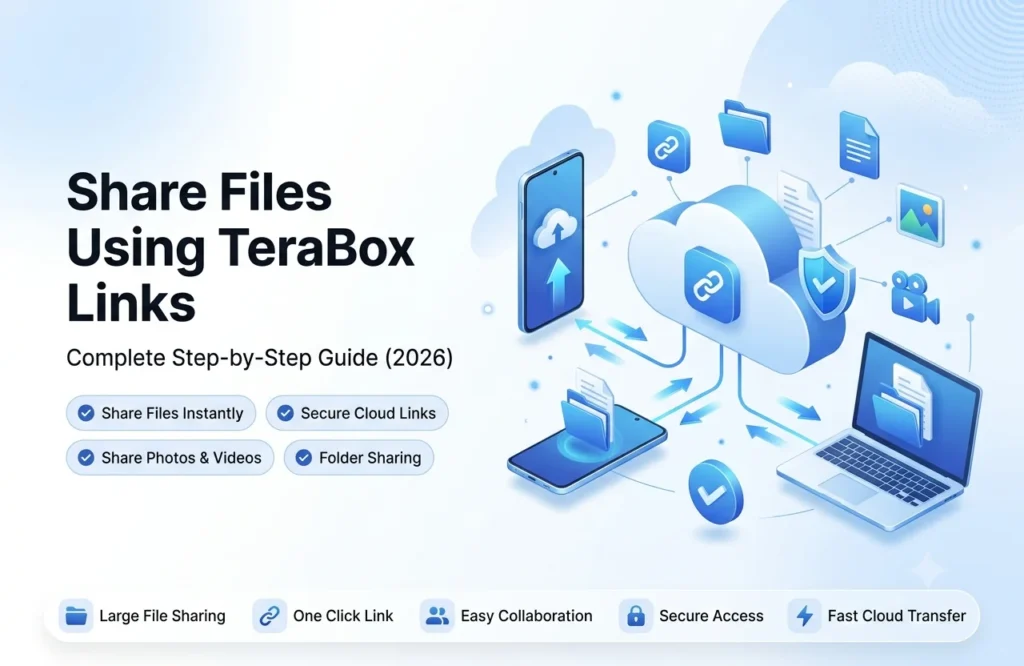
A TeraBox sharing link is a unique URL that allows other people to access files stored in your cloud storage account.
Instead of downloading a file and sending it manually, you can generate a link and share it through email, social media, messaging apps, or any other communication platform.
This makes file sharing faster, easier, and more convenient.
Why Use TeraBox File Sharing?
Many users prefer TeraBox links because they simplify the file-sharing process.
Rather than attaching large files repeatedly, you only need to upload the file once and distribute the generated link. Anyone with access to the link can view or download the content depending on your sharing settings.
This approach saves time and reduces the need for duplicate uploads.
Benefits of Sharing Files Through TeraBox
Using cloud-based file sharing offers several advantages.
Large files can be distributed quickly without worrying about email attachment limits. Multiple people can access the same file using a single link, making collaboration and content distribution much easier.
It also allows users to maintain centralized control over shared content.
How to Share Files Using TeraBox on Mobile
Sharing files from the TeraBox mobile app is straightforward.
Open the app and log into your account. Navigate to the file you want to share and select it. A sharing option will usually appear within the file management menu.
After selecting the share option, TeraBox generates a sharing link. You can then copy the link and send it through WhatsApp, email, Messenger, Telegram, or any preferred platform.
The recipient can access the file using the provided link.
How to Share Files Using TeraBox on PC
Desktop users can also create sharing links easily.
Log into your account through the web version and locate the file you want to share. Select the file and choose the sharing option from the menu.
The platform will generate a unique link that can be copied and distributed to others.
This method works well when sharing large files stored on a computer.
How to Share Multiple Files at Once
Many users need to share entire folders instead of individual files.
TeraBox allows users to organize content into folders and generate sharing links for larger collections of files. This is especially useful when distributing project files, photo albums, study materials, or business documents.
Sharing folders can save significant time compared to creating individual links.
Can You Share Videos Through TeraBox?
Yes, video sharing is one of the most common uses of TeraBox.
Users frequently upload movies, tutorials, educational content, and personal recordings to cloud storage and then distribute access through sharing links.
This method is often more practical than sending large video files directly through messaging applications.
Can You Share Photos Through TeraBox?
TeraBox is also useful for sharing photo collections.
Instead of sending dozens of images individually, users can upload them to a folder and share a single link. This simplifies photo distribution and keeps files organized.
Families, photographers, and content creators often use this approach.
How to Manage Shared Links
After creating a sharing link, users may want to manage or review their shared content.
Most cloud storage platforms provide tools that allow users to view active sharing links and monitor shared files. Reviewing shared content regularly helps users maintain control over who can access their data.
Proper management improves organization and security.
How to Stop Sharing a TeraBox File
There may be situations where you no longer want others to access a shared file.
In such cases, users can remove or disable the sharing link through account settings or file management controls. Once access is revoked, the link may stop functioning for recipients.
This feature helps protect sensitive or outdated content.
Tips for Secure File Sharing
While sharing links is convenient, security should always remain a priority.
Avoid sharing sensitive information publicly and distribute links only to trusted individuals. Review shared content periodically and remove unnecessary links whenever possible.
Using strong account security practices can further protect your files from unauthorized access.
Common Problems When Sharing TeraBox Links
Occasionally users experience issues with file-sharing links.
Recipients may report that links are not working, files are unavailable, or downloads fail unexpectedly. These problems are often caused by incorrect URLs, expired links, internet connectivity issues, or access restrictions.
Most sharing problems can be resolved by generating a new link and verifying file permissions.
Why Is My TeraBox Link Not Working?
A non-functioning sharing link can occur for several reasons.
The file may have been moved, deleted, or access permissions may have changed. In some cases, recipients may receive incomplete URLs if the link was copied incorrectly.
Double-checking the link and sharing settings often resolves the problem.
Best Practices for File Sharing
Effective file sharing starts with organization.
Create clearly named folders, remove unnecessary files, and review content before generating links. Organized cloud storage makes sharing faster and helps recipients find information more easily.
Good file management also improves your overall cloud storage experience.
Who Can Benefit from TeraBox File Sharing?
File-sharing features are useful for a wide variety of users.
Students can distribute study materials, teachers can share educational resources, businesses can exchange project files, and families can send photos and videos to relatives.
Almost anyone who stores files online can benefit from cloud-based sharing.
Also Check: TeraBox apk guides
Final Thoughts
TeraBox file-sharing links provide a fast and convenient way to distribute files without dealing with attachment size limits or repeated uploads. Whether you’re sharing photos, videos, documents, or folders, the process is simple and efficient.
By understanding how sharing links work, managing access properly, and following basic security practices, users can take full advantage of TeraBox’s file-sharing capabilities.
For personal use, education, or professional collaboration, sharing files through TeraBox remains one of the easiest ways to transfer content online.