How to Recover Deleted Files in TeraBox: Step-by-Step Guide
Accidentally deleting important files can be frustrating, especially when those files contain valuable photos, videos, documents, or work-related data. Fortunately, TeraBox includes recovery features that may help users restore deleted content before it is permanently removed.
Many users assume that once a file is deleted, it is gone forever. However, in most cases, deleted files are temporarily moved to a recycle or trash section, giving users an opportunity to recover them. Understanding how this recovery process works can help prevent unnecessary data loss and restore important files quickly.
In this guide, you’ll learn how to recover deleted files in TeraBox, what happens when files are removed, common recovery problems, and practical tips to protect your data in the future.
Also Check: Share files using TeraBox links
Does TeraBox Have a Recycle Bin?
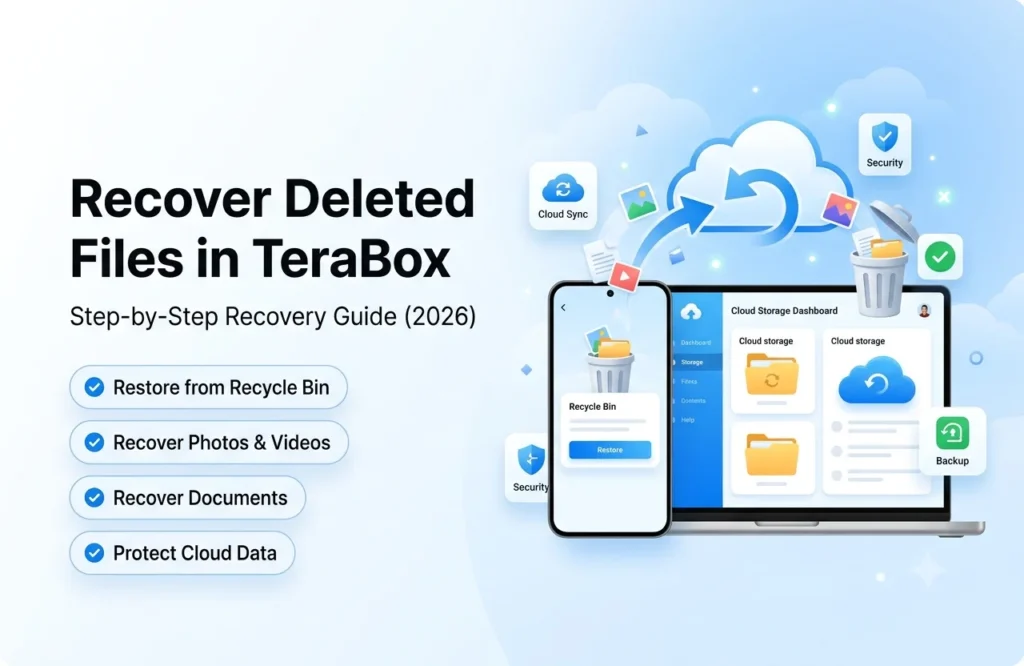
Yes, TeraBox includes a recycle bin feature that temporarily stores deleted files instead of removing them immediately. This provides users with a safety net in case files are deleted accidentally.
When a file is deleted, it is generally moved to the recycle bin rather than being permanently erased. During this period, users can access the recycle bin and restore files back to their original location.
This feature works similarly to the recycle bin found on Windows computers and other cloud storage platforms.
What Happens When You Delete a File in TeraBox?
When a user deletes a file, TeraBox does not usually remove it instantly from cloud storage. Instead, the file is transferred to the recycle bin, where it remains available for a limited period.
During this time, users can review deleted content and restore files if needed. Once the retention period expires or the recycle bin is manually emptied, recovery may become difficult or impossible.
Because recovery options may vary over time, it’s important to act quickly after accidental deletion.
How to Recover Deleted Files in TeraBox on Mobile
Recovering files through the TeraBox mobile app is usually straightforward.
Open the application and sign in to your account. Navigate to the recycle bin or deleted files section. Here, you’ll find files that were recently removed from your account.
Select the files you want to recover and choose the restore option. Once restored, the files should return to their original location within your cloud storage account.
This method works for photos, videos, documents, and many other file types.
How to Recover Deleted Files in TeraBox on PC
Users who access TeraBox through a desktop browser can also restore deleted files.
Log in to your account and locate the recycle bin section within the file management area. Browse the list of deleted files and identify the content you want to recover.
Select the files and click the restore button. After the restoration process is completed, the files should reappear in your cloud storage folders.
Desktop recovery is particularly useful when restoring multiple files at once.
Why Can’t I Find My Deleted Files?
Sometimes users cannot locate deleted files inside the recycle bin. There are several possible explanations.
The file may have been deleted long ago and automatically removed from the recycle bin after the retention period expired. In other cases, the recycle bin may have been manually emptied, permanently removing the content.
Users may also be signed into the wrong account, making it appear as though files are missing when they are actually stored elsewhere.
Checking account details carefully can help avoid confusion.
Can Permanently Deleted Files Be Recovered?
This is one of the most frequently asked questions among TeraBox users.
Once files have been permanently removed from both active storage and the recycle bin, recovery becomes significantly more difficult. In many situations, permanently deleted files cannot be restored through standard recovery methods.
If important files have been lost, contacting customer support may be worthwhile. However, successful recovery is not always guaranteed after permanent deletion.
This is why maintaining backups remains essential.
Common Reasons for File Loss in TeraBox
File loss can occur for many reasons besides accidental deletion.
Users may accidentally delete folders, overwrite files, remove content from synchronized devices, or experience account access issues. Sometimes files appear to be missing due to synchronization delays or incorrect folder navigation.
Understanding the cause of the issue can help determine the most effective recovery solution.
How to Prevent Losing Files in TeraBox
The best recovery strategy is prevention.
Users should regularly back up important files to multiple locations rather than relying on a single storage platform. Keeping copies on a computer, external drive, or secondary cloud storage service provides additional protection.
Organizing files properly and reviewing content before deletion can also reduce the risk of accidental data loss.
Good storage habits often eliminate the need for recovery entirely.
Also Check: Delete terabox account permanently
Benefits of Using Cloud Storage Recovery Features
Recovery features provide peace of mind for users who manage large amounts of data. Mistakes happen, and having a recycle bin allows users to correct accidental deletions without immediately losing valuable content.
This feature is particularly useful for students, professionals, photographers, and content creators who work with large file collections.
The ability to restore deleted files is one of the most valuable protections offered by modern cloud storage services.
Best Practices for Managing Important Files
Important files should always be treated differently from ordinary data.
Critical documents, family photos, work projects, and financial records should be backed up regularly. Users should also avoid deleting files impulsively and review folder contents carefully before confirming removal.
Creating organized folder structures can further reduce the likelihood of accidental deletion.
Simple file management habits can prevent major recovery problems later.
Final Thoughts
Accidentally deleting files in TeraBox does not always mean they are lost forever. In many cases, deleted content can be restored through the recycle bin if action is taken before permanent removal occurs.
Understanding how TeraBox recovery works, checking deleted files promptly, and maintaining regular backups can significantly reduce the risk of permanent data loss. Whether you’re recovering photos, videos, documents, or other files, acting quickly provides the best chance of success.
By following the recovery methods and prevention tips outlined in this guide, users can manage their cloud storage more confidently and protect important data from accidental deletion.