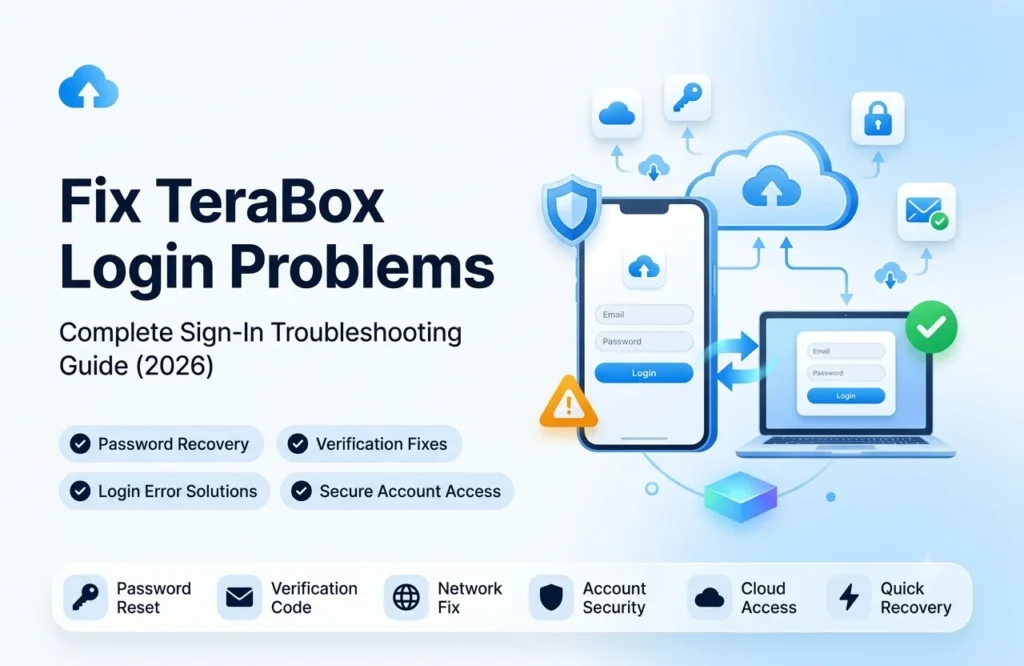
TeraBox Login Problems & Solutions: Complete Troubleshooting Guide
TeraBox is a popular cloud storage platform used by millions of people to store photos, videos, documents, and backups online. However, some users occasionally encounter login issues that prevent them from accessing their accounts. These problems can be frustrating, especially when important files are stored in the cloud.
The good news is that most TeraBox login problems can be resolved without technical expertise. Whether you’re dealing with an incorrect password, verification failure, account access issue, or app-related error, there are several solutions that can help restore access quickly.
This guide covers the most common TeraBox sign-in issues, their causes, and step-by-step solutions.
Why Can’t I Log Into My TeraBox Account?
There are many reasons why users fail to log in successfully. Sometimes the issue is as simple as entering the wrong password, while in other cases it may involve network problems, account verification errors, outdated applications, or temporary server issues.
Before assuming your account has been compromised, it’s important to identify the exact cause of the problem. Most login failures are temporary and can be fixed within a few minutes.
Understanding the source of the issue is the first step toward regaining account access.
Also Check: Why is TeraBox not working
Incorrect Email Address or Password
One of the most common login problems occurs when users enter incorrect account credentials. A small typing mistake, incorrect email address, or forgotten password can prevent successful login attempts.
Many users accidentally enable uppercase letters or enter extra spaces without realizing it.
How to Fix It
Carefully re-enter your email address and password. Make sure the keyboard language and capitalization settings are correct. If you cannot remember your password, use the password reset option available on the login page.
In many cases, this simple step resolves the issue immediately.
Forgot Your TeraBox Password?
Forgetting passwords is extremely common, especially if you use multiple online accounts.
Fortunately, TeraBox provides password recovery options that allow users to reset their credentials through email verification or linked account recovery methods.
How to Reset Your Password
Select the “Forgot Password” option on the login screen. Follow the instructions provided and complete the verification process. Once verified, create a new strong password and try signing in again.
Choose a password that combines letters, numbers, and special characters for better security.
TeraBox Verification Code Not Working
Some users report that they never receive the verification code required to log in or reset their password. This can happen due to email delivery delays, spam filtering, network issues, or incorrect account information.
Without verification, users may be unable to access their accounts.
How to Fix It
Check your spam and junk folders first. Verify that the email address linked to your account is correct. If the code still doesn’t arrive, wait a few minutes and request a new verification code.
Using a stable internet connection can also improve the verification process.
Poor Internet Connection
TeraBox requires an active internet connection to authenticate users and access cloud-stored files. A weak or unstable connection can interrupt the login process and generate unexpected errors.
This is especially common when using public Wi-Fi networks or unstable mobile data connections.
How to Fix It
Switch between Wi-Fi and mobile data to test another connection. Restart your router if necessary and ensure that your network is functioning properly before attempting to log in again.
A stable connection often resolves authentication failures.
TeraBox App Not Updated
Using an outdated version of the application can sometimes create compatibility problems. Older versions may contain bugs that interfere with the login system or communication with servers.
Developers regularly release updates to improve stability and security.
How to Fix It
Visit your device’s app store and check for available updates. Installing the latest version of TeraBox may fix login bugs and improve overall performance.
Keeping the app updated is one of the easiest ways to avoid future issues.
TeraBox App Keeps Crashing During Login
Some users can reach the login page but experience app crashes immediately after entering their credentials. This problem is often linked to corrupted cache files or device-related issues.
Temporary application data can occasionally interfere with normal operation.
How to Fix It
Clear the TeraBox cache from your device settings and restart the application. If the issue continues, uninstall and reinstall the app to remove corrupted files completely.
This process often restores normal functionality.
Account Temporarily Restricted
In rare situations, accounts may become temporarily restricted because of unusual activity, repeated failed login attempts, or security reviews.
When this happens, users may receive warning messages or access limitations.
How to Fix It
Wait for the restriction period to expire and follow any instructions provided by TeraBox. If necessary, contact customer support to verify your identity and request assistance.
Avoid repeated login attempts if you suspect your account is temporarily locked.
TeraBox Login Problems on Android
Android users may encounter login issues caused by outdated operating systems, app conflicts, or permission-related problems.
Device-specific software issues can occasionally interfere with account authentication.
How to Fix It
Update Android, clear app cache, restart the device, and ensure that required permissions are enabled. Logging in through a browser can help determine whether the issue is device-related.
These steps solve most Android login problems.
TeraBox Login Problems on iPhone
iPhone users sometimes report login failures after iOS updates or application glitches. While these issues are usually temporary, they can prevent access to important files.
How to Fix It
Update both iOS and the TeraBox application. Restart your device and attempt to sign in again. If necessary, reinstall the application.
Most iPhone login problems are resolved through basic troubleshooting.
Browser Login Issues
Some users access TeraBox through web browsers instead of mobile apps. Browser extensions, corrupted cookies, and outdated browser versions can interfere with the login process.
How to Fix It
Clear browser cache and cookies, disable unnecessary extensions, and try logging in using Incognito Mode. Testing another browser can also help identify the cause.
Browser-related problems are often easy to resolve.
How to Keep Your TeraBox Account Secure
Preventing login problems starts with good account security practices. Use a strong password and avoid sharing login credentials with others. Regularly update your recovery email address and review account activity.
Keeping devices updated and using secure networks can further reduce the risk of access issues.
A secure account is less likely to experience login complications.
Best Practices for Avoiding Future Login Problems
Most sign-in issues can be prevented through routine account maintenance. Keep your app updated, maintain accurate account information, and store recovery details in a secure location.
Regularly reviewing account settings and enabling available security features can improve reliability and reduce future access problems.
Small preventive actions can save significant time later.
Also Check: Terabox apk guides
Final Thoughts
TeraBox login problems can be frustrating, but they are usually easy to fix. Whether the issue is caused by incorrect credentials, password recovery problems, poor internet connectivity, outdated software, or temporary restrictions, there are practical solutions available.
By following the troubleshooting methods explained in this guide, most users can regain access to their accounts quickly and continue using TeraBox without interruption. If problems persist after trying all recommended solutions, contacting customer support is the best next step.